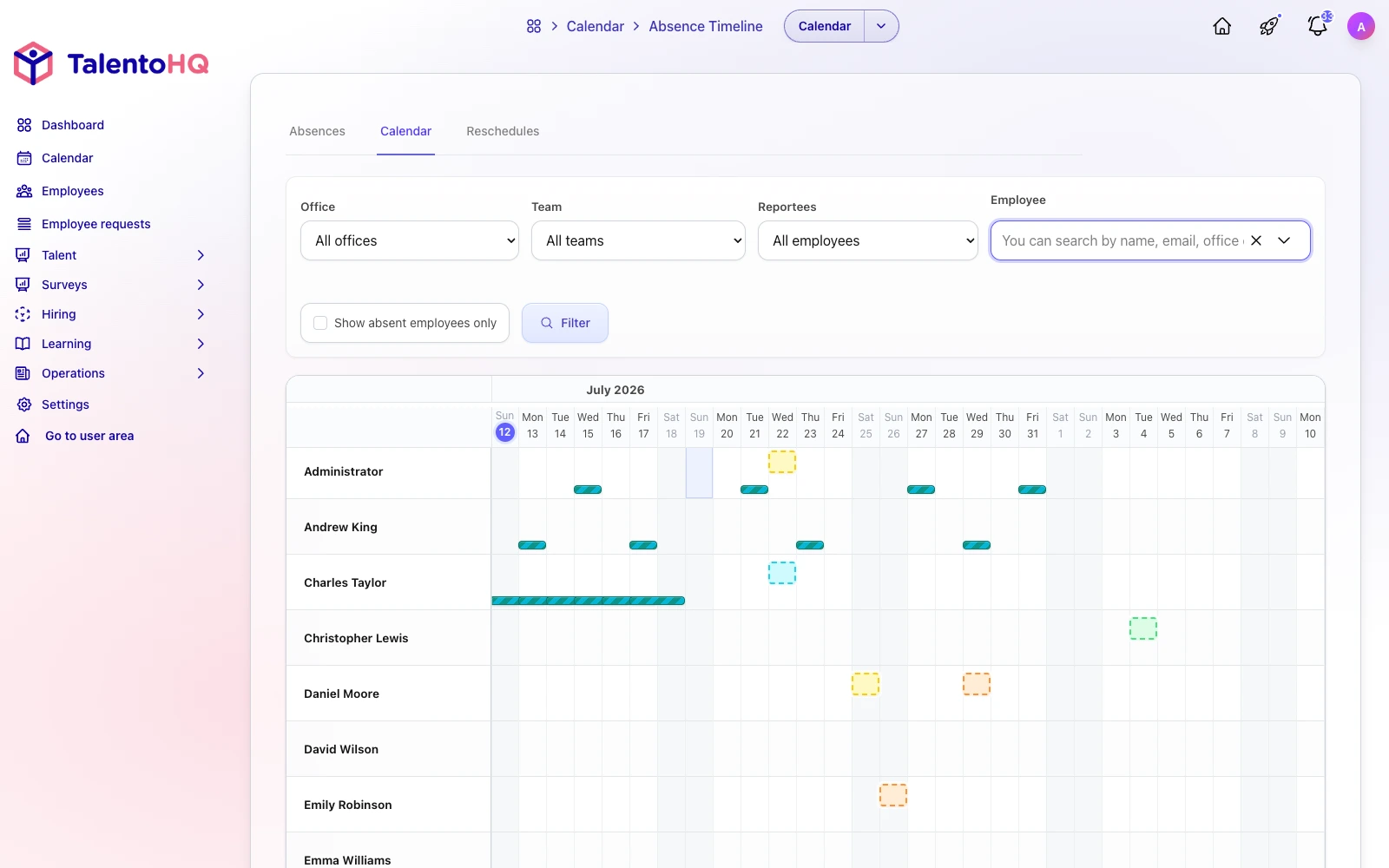
When you manage a team, you want to see at a glance who is away, whether the absence is already approved, which category it is, and whether that same person is on call those days. The TalentoHQ absence calendar brings vacation, sick leave, other time off, and on-call shifts onto one screen for managers and administrators.
On a timeline you see people in rows and days in columns. In seconds you can spot coverage gaps, pending requests, and overlaps with on-call shifts. Before you confirm vacation, you cross-check the team’s real calendar: absences, each office’s public holidays, and on-call windows.
This guide explains how to read that view, how to narrow the team with filters, and how to create or approve an absence without leaving the calendar.
Why use the absence calendar
The value of this screen is not drawing coloured bars. It is having, in the same place, the status of each absence, each office’s working calendar, and the context of on-call shifts. That helps you avoid approving a week of vacation without seeing that the person covers an on-call shift, or that several colleagues on the same rota are already away.
You also gain range. Opening the view loads about seven months, and more months load as you scroll. It works for the week ahead and for planning the quarter without changing tools. With the filters (office, team, company, reports, specific people, or only employees who are away) you move from the whole organisation to your direct team when you need to.
And you can act from the same place: create an absence with a click or a drag, open the detail, approve what is pending, and see the row update at once. You work with the full picture in front of you. The vacation and absence management page describes the full request, balance, and approval flow; the calendar is the planning view that supports it.
What you see when you open the page
From administration, in the Calendar menu, you enter the absence calendar. It is a day-by-day timeline: each row is a person in your management scope and each column is a specific day.
On entry, the system loads about seven months: the previous month, the current month, and five months ahead. You scroll the timeline horizontally. As you near the edge, three more months load (before or after) without leaving the view.
The view centres itself on today. The current day is marked in the header and in the column. Weekends have a softer background and remain valid days for recording absences, which is useful if your team works shifts.
On the left, each employee’s name stays fixed. Above, the month and year. Below, the weekday and the date number.
How to read absence bars
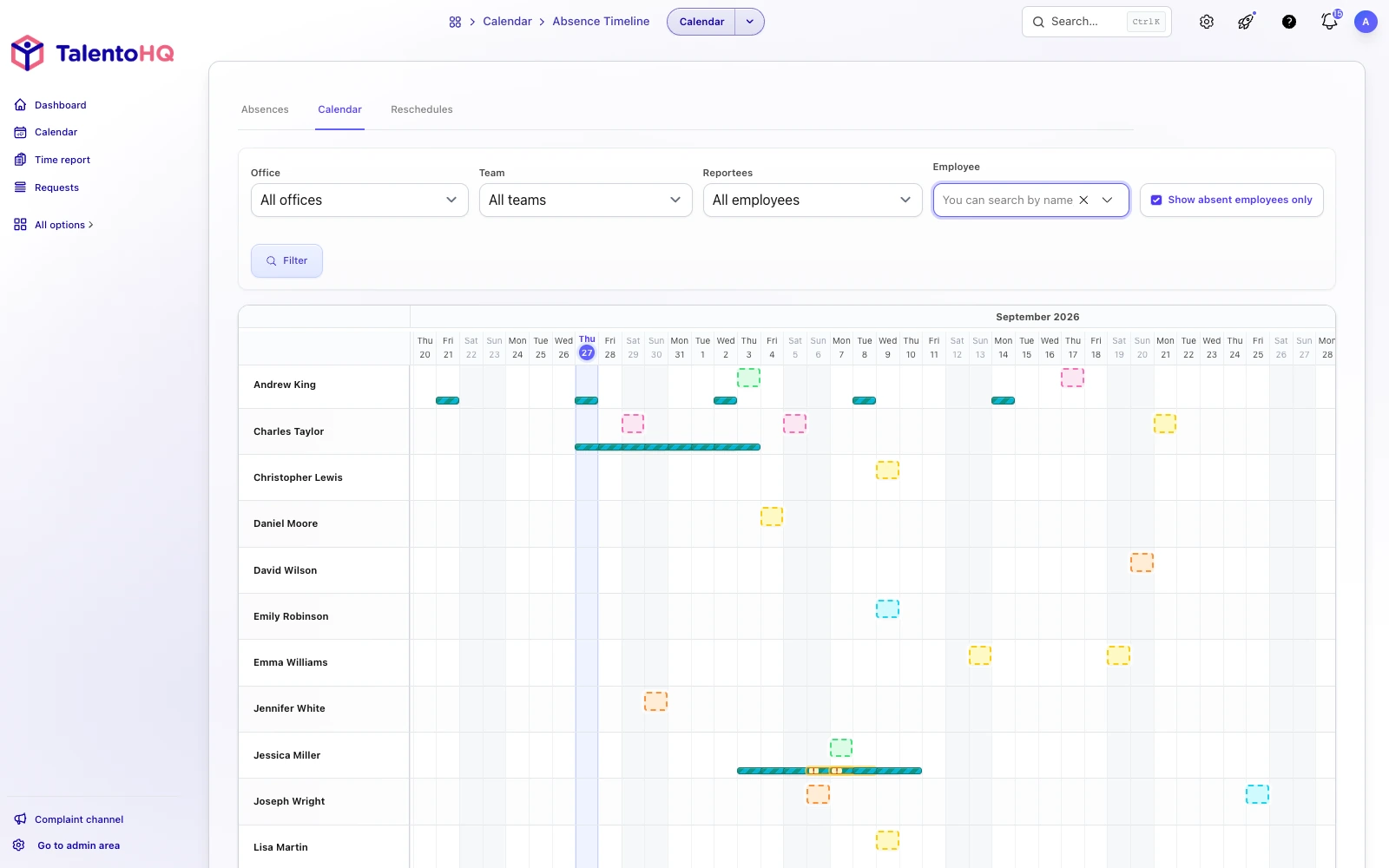
Each absence appears as a continuous bar over the days it covers. If it lasts at least three days, the bar shows the category and the number of days, for example: Vacation - 5 days.
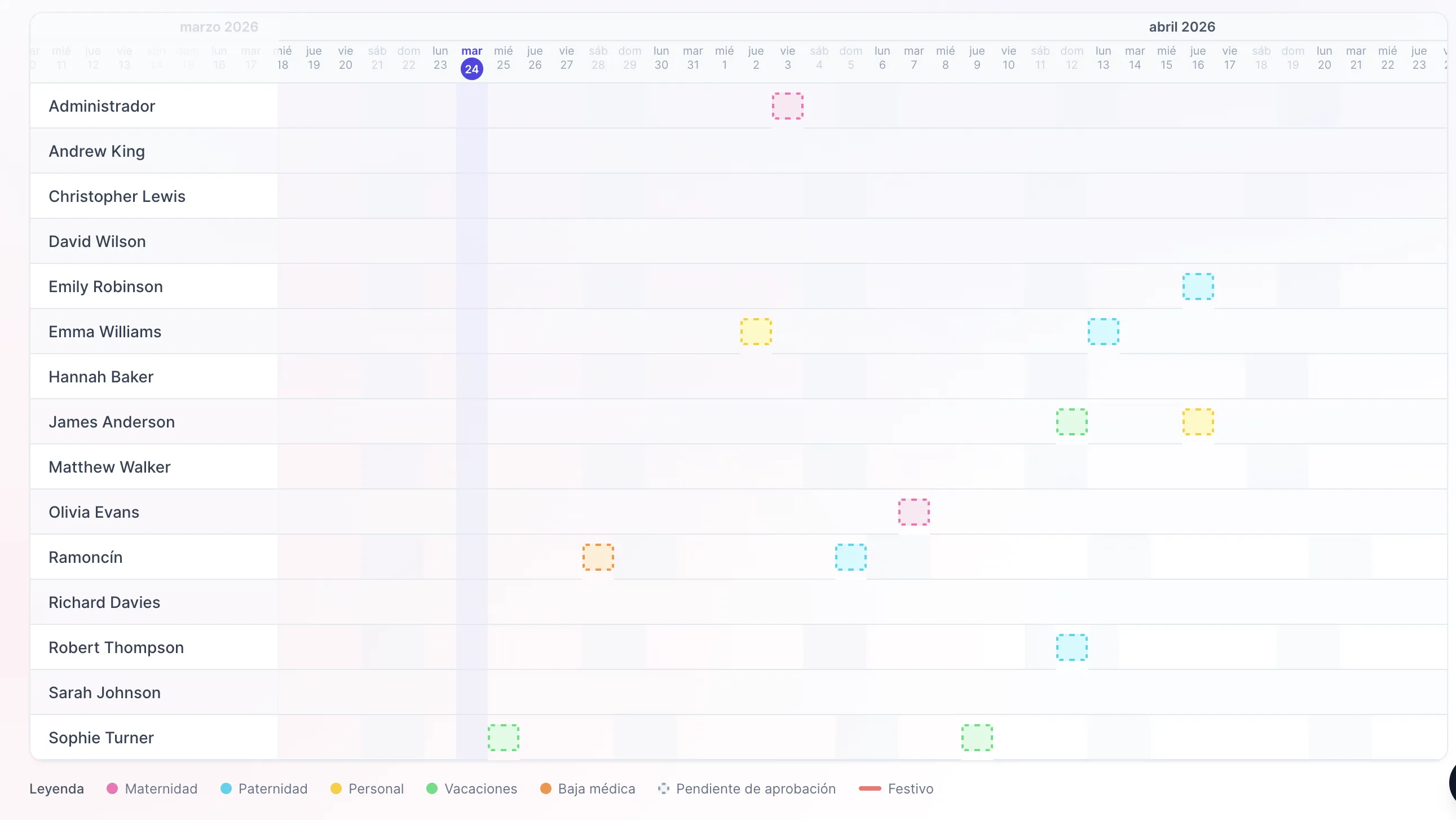
Colours follow the absence category you have configured. Status is read as follows:
- Approved. Solid colour of the absence category.
- Pending approval. The same colour, softer, with a dashed border. Hovering usually shows the category name and a pending mark.
That distinction keeps what is already decided separate from what still awaits review. You can read the team’s real coverage and, at the same time, see which requests remain open.
Office public holidays
On public holidays for each person’s office, an amber dot appears in the cell. You plan coverage against each office’s real calendar, not a single national list. In the legend, that mark is called Holiday.
If your company has several locations, this mark avoids a common mistake: treating a day as a working day for a team when it is a holiday in their office, or the other way around. The calendar shows the holiday on that person’s row, next to their absences.
On-call shifts in the same view
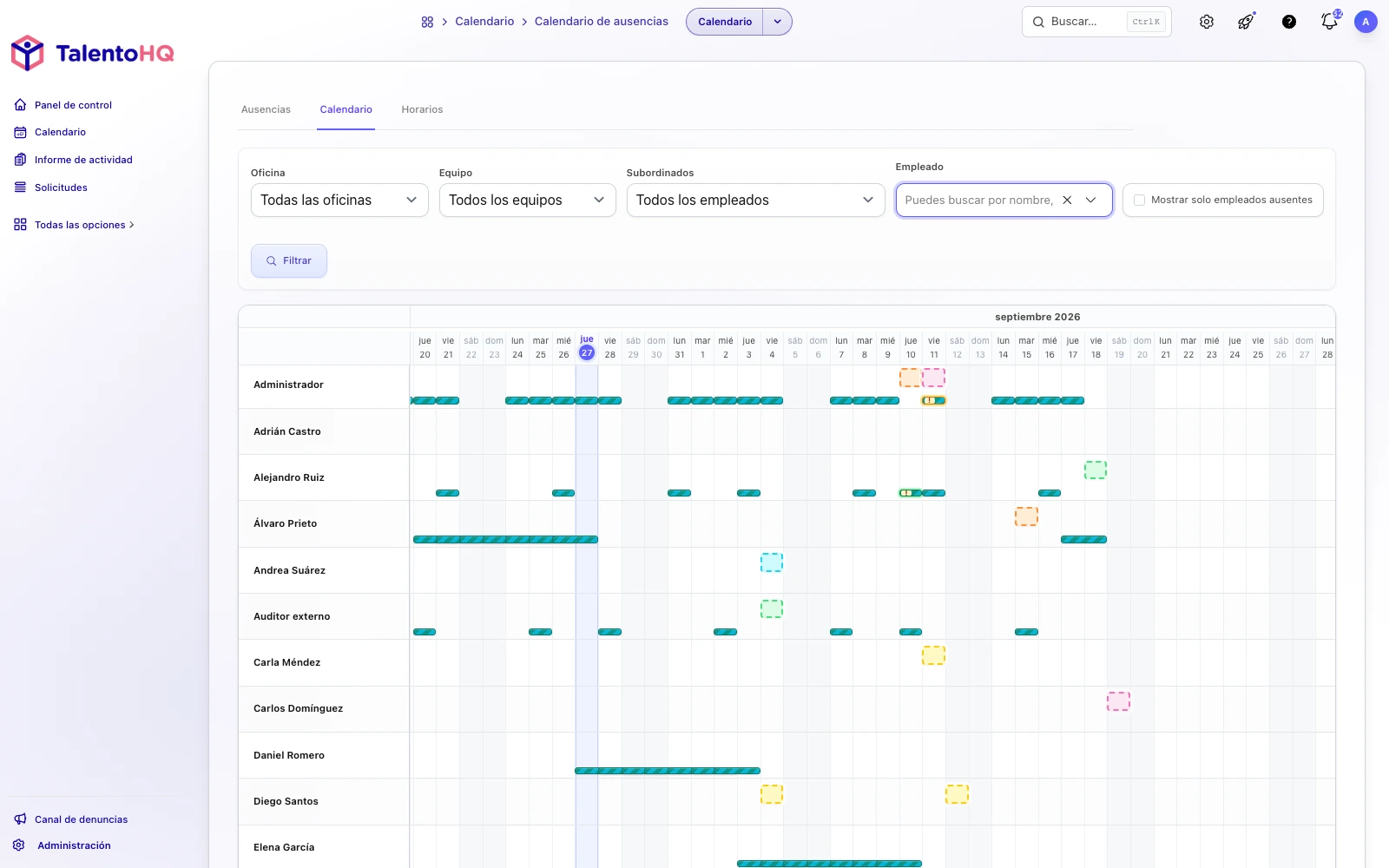
Besides absences, the managers’ calendar can show on-call shifts as thinner, striped bars under each person’s row. If the span is long, the text follows the pattern On-call: [name of the on-call calendar]. Hovering shows the on-call hours.
If an approved absence overlaps an on-call shift, the on-call bar can show a visual warning (!) and detail in the tooltip. On this screen, on-call shifts provide reading context: you see the overlap at once. Cover and substitutions are managed from on-call calendar configuration, described on the on-call shifts page.
In the legend, when on-call shifts are loaded, the On-call entry appears.
If you want to see how this view fits the rotas and cover in your team, you can book a demo.
Filters to narrow the team
Above the timeline you have a filter form (Filter button):
- Office, Team and Company. They appear if your account has more than one.
- Reports. Direct reports, direct and indirect, or (if you are an admin) all employees.
- Employee. Multi-select search to pin specific people.
- Show only employees who are away. Leaves in the grid only people who have an absence in the loaded period. Having only an on-call shift keeps that person out of this filter.
That is how you move from the whole organisation to your direct team for this week with one click on Filter. The away-only filter is especially useful when you want to focus on cover, not on the full list of people who are available.
Create and edit from the calendar
In an empty cell you can:
- click a day to open the new-absence modal for that person on that date, or
- drag across several consecutive days to set the start and end range.
After saving, that person’s row updates on the timeline.
If you click an existing absence bar, you open the edit modal. From there you can review the detail and, when it applies, approve the request. The bar moves from pending to approved at once.
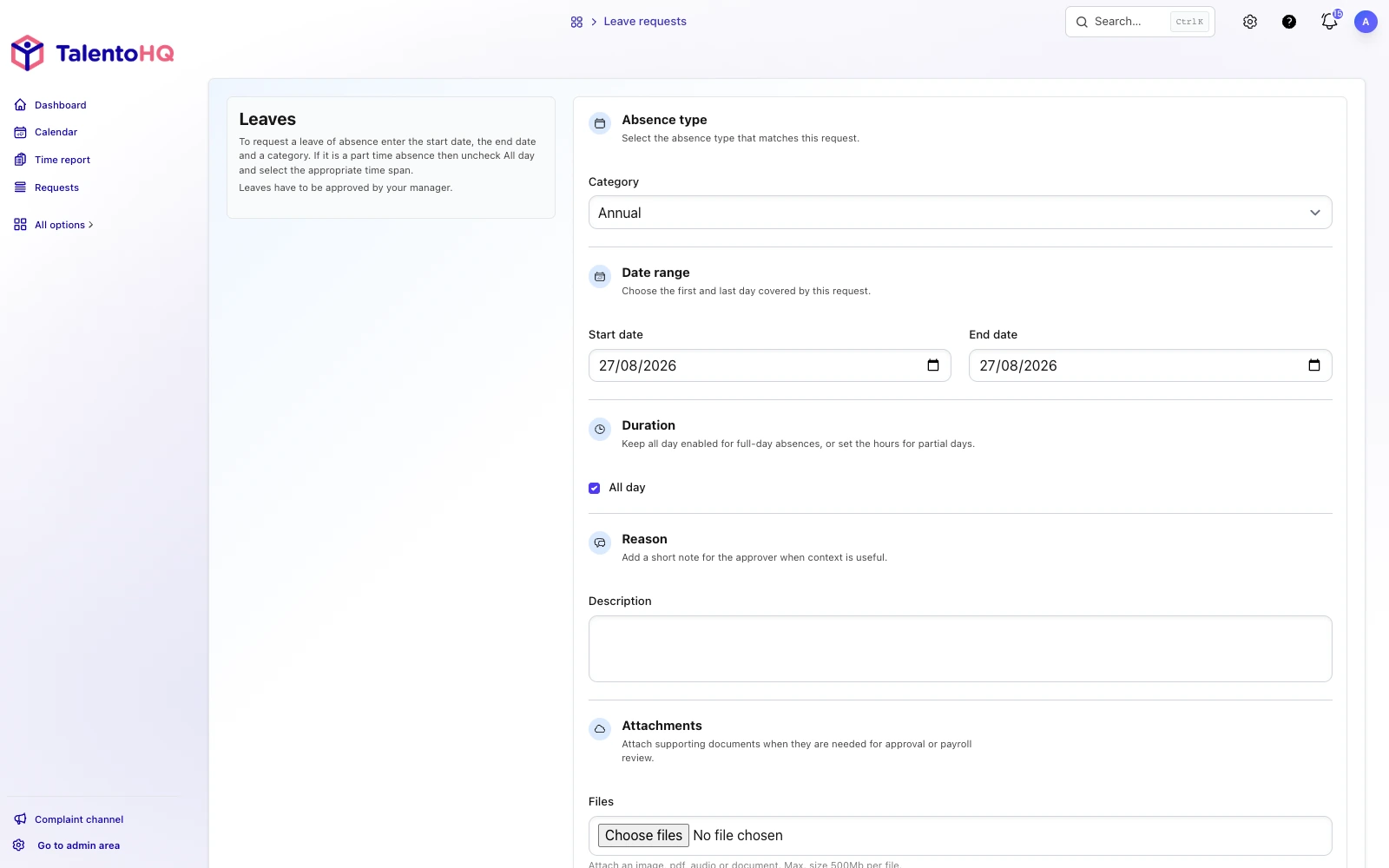
The calendar does not replace the request list or available-days reports. It completes those pieces: you see the effect on the team and, from the same view, record or confirm the change. You can also try TalentoHQ for 14 days with no credit card and open the calendar with your own team.
How to get started
- Go to Calendar → Absence calendar (managers).
- Choose direct reports or the team you need and press Filter.
- Turn on Show only employees who are away if you want to focus on who is out.
- Review pending bars and approve from the modal when it is time.
- Look at the On-call bands on the same dates.
With those five steps you have the picture of the week and the quarter: who is away, what still needs approval, and where an on-call shift needs cover. To go deeper into balances, categories and approval flows, see also absence and vacation tracking.
A view for planning with context
The absence calendar is there so you can decide with the information in front of you: people, days, the status of each request, office holidays and on-call shifts. You do not need to cross spreadsheets, chats and separate calendars to know whether a week can be covered.
When the timeline, the filters and in-calendar editing work together, planning stops being a reconstruction after the fact and becomes a shared reading of the team.
Frequently asked questions about the absence calendar
How do I manage vacation requests and absences from the calendar?
Open Calendar → Absence calendar to see each person’s approved and pending absences, office public holidays and on-call shifts day by day. You can create an absence with a click or a drag and approve pending requests without leaving the view; the full request, balance and approval flow is on the vacation and absence management page.
Who can open this view?
Managers and administrators, from Calendar → Absence calendar. Each person sees the scope that applies to them according to reports, teams and account permissions.
How much time does the timeline cover?
When you open it, about seven months load: the previous one, the current one and five ahead. As you near the edge, three more months are added, backwards or forwards, without changing screen.
What does a bar with a dashed border mean?
That the absence is pending approval. It uses the category colour, softer, and hovering usually shows the category and the pending mark. When you approve it, the bar becomes solid.
Are on-call shifts managed from this screen?
No. Here on-call shifts give reading context: you see the band, the hours on hover, and the warning if it overlaps an approved absence. Substitutions are managed in on-call calendar configuration.
Does the away-only filter include people who only have an on-call shift?
No. That filter leaves in the grid people who have an absence in the loaded period. A person with an on-call shift and no absence stays out.