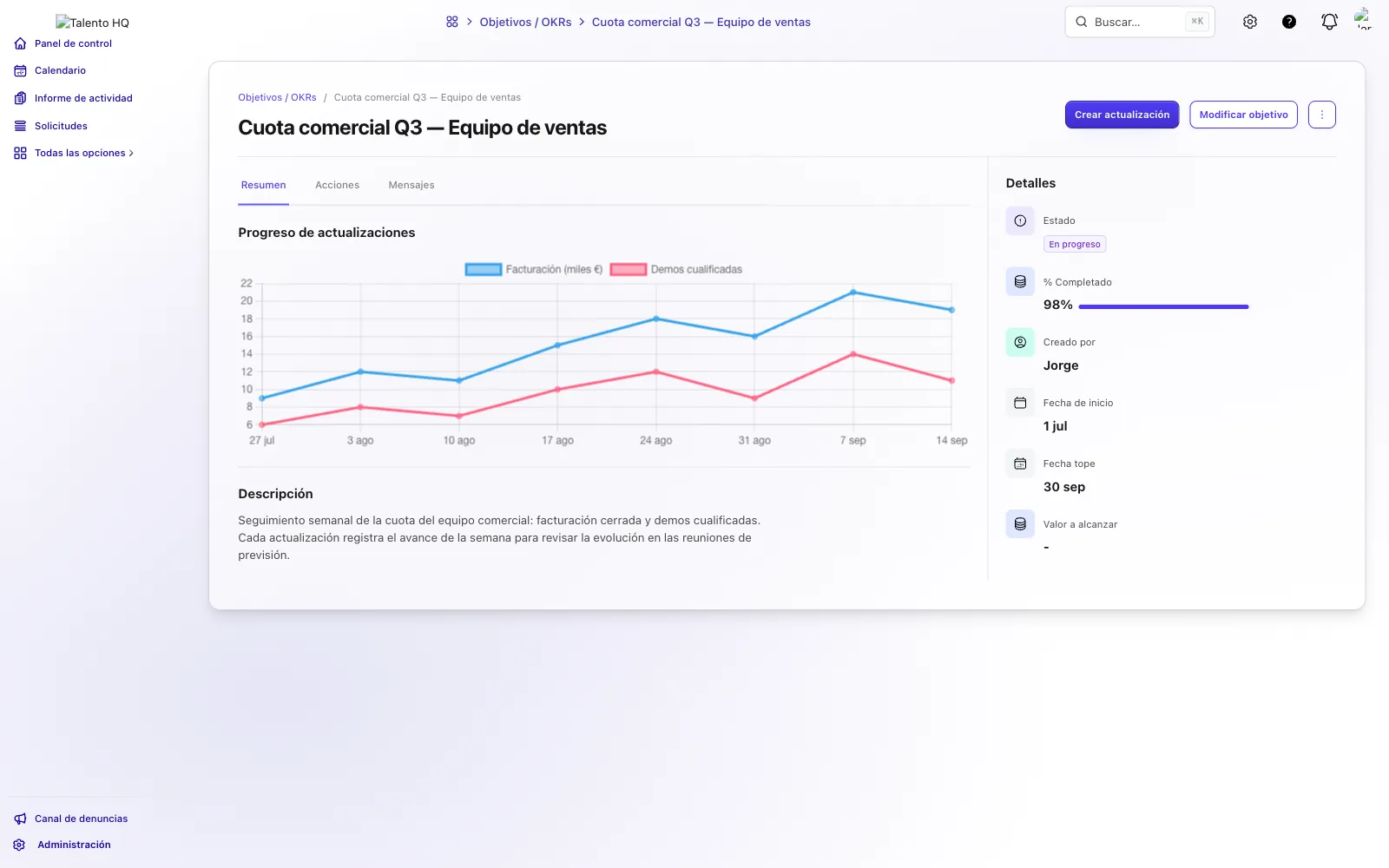
This article shows how to run weekly follow-up for a sales team: goals by person, team or office, metrics with progress, periodic update requests, a history of advances, action lists and visibility in 1:1 meetings. The manager sees the team’s progress in a single record, without relying on scattered messages.
Tracking and key results in the same goal
In TalentoHQ a sales goal can carry several metrics at once (name, value and progress 0–100). In sales practice this is usually enough:
- One tracking metric (for example, closed revenue for the month or the quarter).
- One or two key-result metrics that show whether that tracking metric is reachable (qualified demos, average ticket, renewals, pipeline coverage).
Each metric is updated independently. In a single goal the manager reviews the tracking metric and, at the same time, the metrics that show whether the team is on course. The update request (for example weekly) and the 1:1 history apply to that same goal.
Assigning sales goals
Each goal has an owner and a visibility. The owner is accountable for follow-up. Visibility defines who sees it and who receives the update reminder: people, teams, offices, roles or companies in the account.
A sales team usually uses three readings:
- Person. A salesperson’s quota or key result.
- Team. The sales team’s commitment.
- Office. The target of a site or territory.
The office goal can coexist with the individual ones. The manager filters by team or office and reviews the set. If the office goal should reflect a total, it is updated with the criterion the team has agreed.
When you create the goal you set the name, dates, owners and the expected result. The product statuses are:
- Draft. The scope and tracking metrics are defined.
- In progress. It is underway and can request follow-up.
- Achieved. Closed on reaching the target.
- Missed. Closed without reaching it.
- Discarded. Out of the cycle; it is not mixed with what is active.
The salesperson only sees what visibility grants. When the period closes it moves to Achieved or Missed with evidence in the history. If the goal is in progress and has dates, it can appear in the calendar of whoever has visibility.
Metrics: name, target value and progress
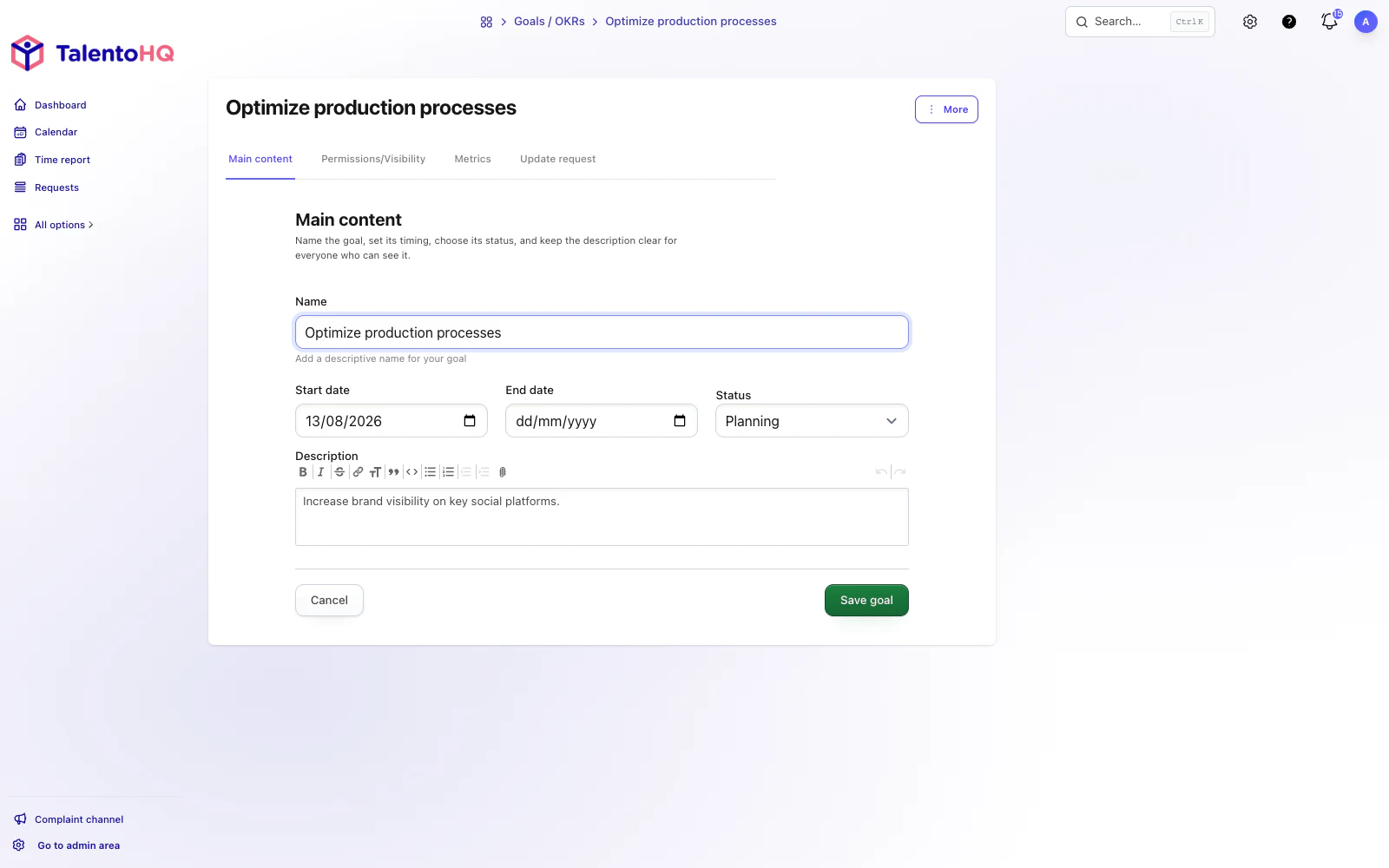
Each goal carries metrics. Each metric has a name and a target value: closed revenue for the month, number of qualified demos, average ticket or renewals for the quarter. In each update you enter the value achieved. The bar shows progress from 0 to 100 from that figure.
You can put one metric or several in the same goal. A goal to close the quarter can carry revenue, new accounts and pipeline coverage as three separate lines. Each metric is updated independently so you have all the information you need.
You define the target value. The team records the value achieved.
Update request: the weekly pulse
When you create a goal you can, optionally, turn on an update request at the frequency that suits you: daily, weekly, fortnightly, monthly…
With the frequency active, the system sends an email and an in-app notice to the people who can see the goal. That makes it straightforward for each person involved to report progress.
Weekly usually fits sales: short enough to correct in time, long enough for the advance to be real. Fortnightly or monthly work for key results with a longer cycle, for example key accounts. Daily, for indicators that need immediate attention.
If you want to see how that cadence looks with your team, you can request a demo with no obligation.
Progress update when it is needed
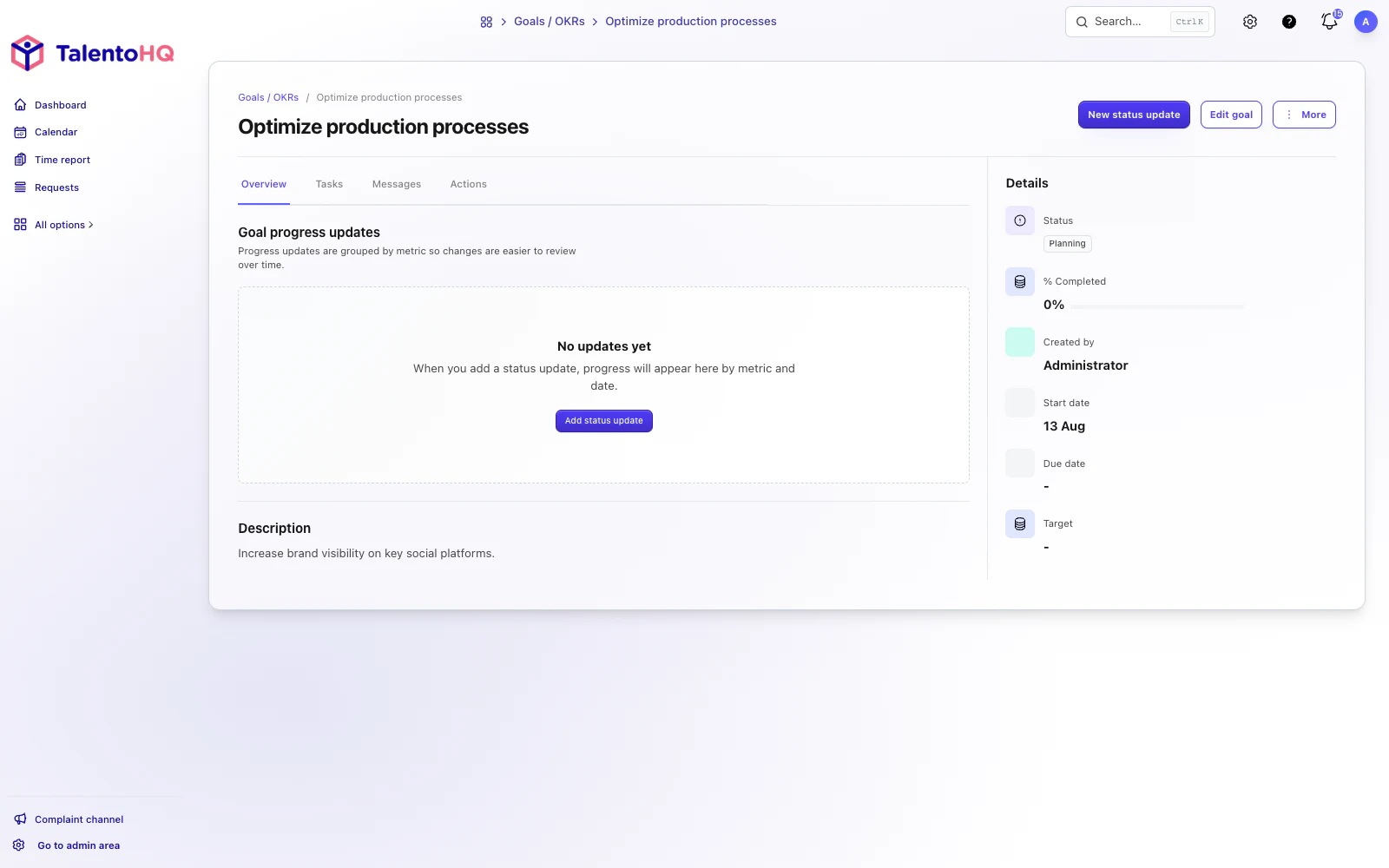
Users with access can publish a progress update at any time, including outside the scheduled reminder. They must include a description and the value achieved for each metric.
That way you can record the same day as a close, a price change or a forecast adjustment, and the team has the context up to date in the goal itself.
A goal also includes:
- Messages, to keep every conversation related to the goal in one place.
- Action lists, if you need to create lists of actions, assign owners and control the steps to take.
- 1:1 meetings. One of TalentoHQ’s advantages is that it organises the information you need, when you need it. The meeting shows that person’s in-progress goals, with dates and a progress bar. The manager has all the information needed at a glance.
One detail to keep in mind: in 1:1 meetings the manager has access to the goals whose owner is the person in the meeting. A team or office goal created by the manager appears there when that person is the owner.
Manager view: team, office and deadlines
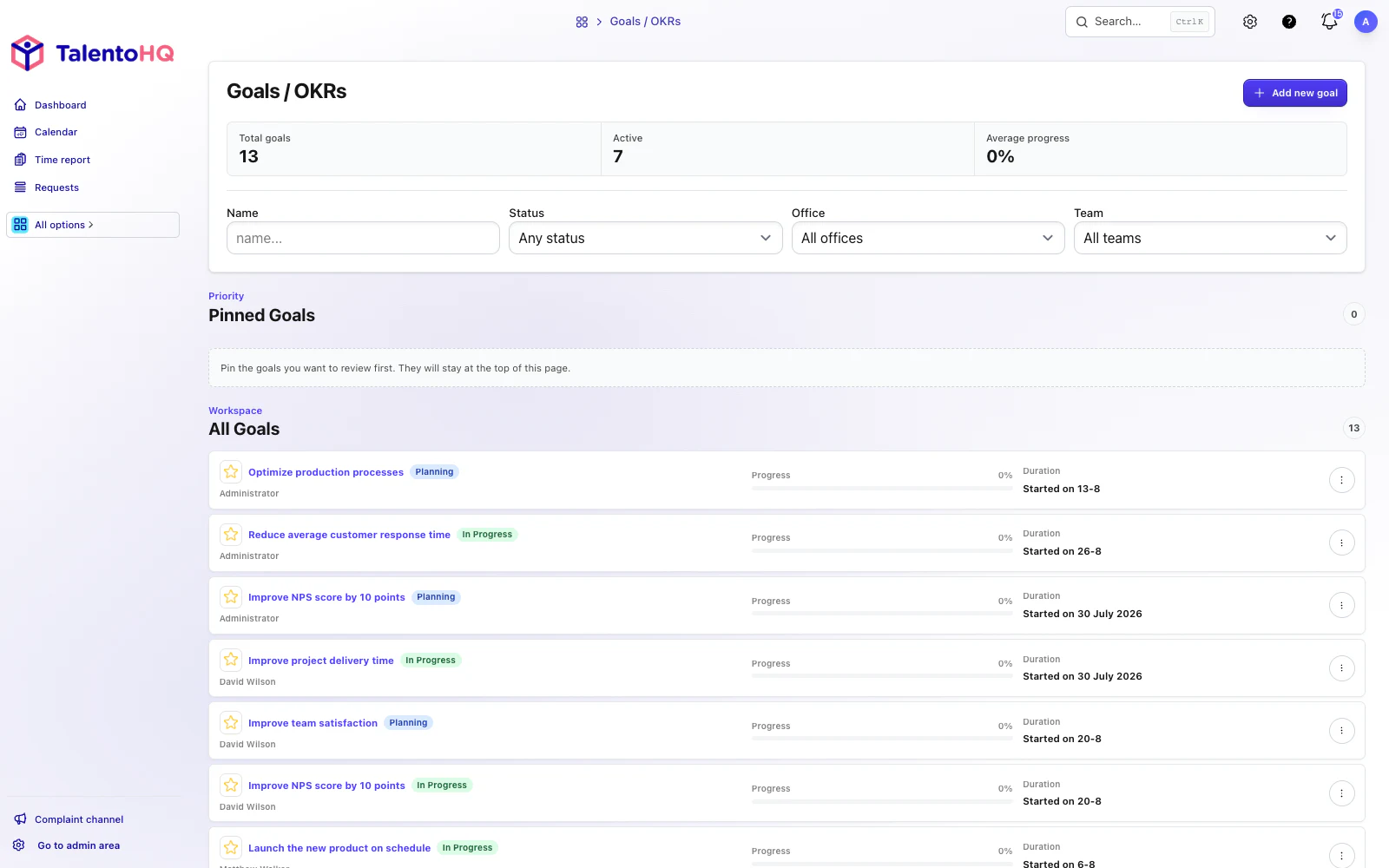
As a sales lead you can list the goals of the team or the office. You see the progress and the dates of each one, with the current status visible at a glance.
From that list you reassign actions, create a 1:1 with the person responsible or update the status of a goal that is no longer needed.
Statuses keep the information in order: planning, in progress, achieved, missed and discarded. What was achieved remains as a reference for the cycle; what was missed and discarded stays recorded for the next planning round, without mixing with what is still active.
The same view works for the team meeting: you project the filtered list and work on the real goals.
You can try TalentoHQ for 14 days with no credit card and create the goals your team needs.
The AI assistant prepares. You set the target.
From the AI assistant you can ask it to create a sales goal with metrics, to record a progress update or to list the team’s open goals. The assistant is in every plan and respects the same permissions as the rest of the account.
AI speeds up setup and follow-up. You decide the target value, the update frequency and when a goal moves to Achieved or Missed.
Examples from a sales day:
- Create the team’s quarterly goal with three metrics and owners.
- Add an update after the week closes with the value achieved for each metric.
- Ask for the list of in-progress goals for the office before the 1:1 or the forecast meeting.
AI simplifies the tedious work of defining goals: the criterion and the judgement remain yours.
How to start
- Create a team or office goal, with dates and In progress status.
- Add two or three metrics with a name and a target value.
- Turn on the weekly update request for whoever can see it.
- Ask the team for the first update with the value achieved.
- Open a 1:1 with that person’s in-progress goals and, if needed, the history.
Goals is part of All Inclusive, together with 1:1 meetings and the rest of talent management. The Time Tracking-only plan does not include this part. Plan details are in pricing.
With those five steps you have the pulse of the week: visible sales goals, updated metrics and 1:1 meetings with the right context.
Frequently asked questions about sales goals
Are goals and OKRs the same in TalentoHQ?
TalentoHQ works with measurable goals: name, dates, status, metrics, target value and updates. You can apply that structure to OKRs when your company uses objectives and key results as a method. It does not impose a specific framework.
Does the team quota calculate itself from the individual ones?
No. Person, team and office goals coexist and are filtered in the same list. The progress of each one is updated with its metrics. There is no automatic sum of personal quotas into the site goal.
Do you have to wait for the email to update?
No. The periodic request reminds the cadence. Anyone with visibility on the goal can publish an update at any time, with a description and the value achieved.
Does this replace the CRM?
No. The CRM remains the place for opportunities, stages and amounts. The goal metrics are not filled automatically from the pipeline. The team enters the value that has been agreed to follow.
Which plan is it in?
Goal management is in All Inclusive. It is not part of the Time Tracking-only plan. The AI assistant, which can create or list goals, is available in every plan, with each person’s permissions.