
An approval flow says who decides each request and lets the person follow it until there is an answer. In TalentoHQ you turn that policy into active rules for every type of request in your company, from leave to expenses or purchase orders.
This guide takes you from a policy sentence to an active rule: who it applies to, who decides, how you test it in draft and how you keep it current when the team changes. With time management you can already define approval processes by company, workplace, team or employee, with named people or generic roles.
Write your policy in one sentence per request type
Start with a clear sentence anyone on the team would understand, for example about who approves vacation.
Two examples: "direct managers approve leave" and "direct managers and finance approve expenses". If the sentence is concrete, the rule will be too.
Create one rule per request type
Create one rule for each type of request you want to control.
You can cover leave, time entries, schedule changes, expenses, tasks, purchase orders, budgets, courses and evaluations or surveys. Name the rule after the process ("Expense approval"), not after a person. The rule is saved as a draft and changes nothing until you review and activate it, with at least one valid approver. Each rule is active, in draft or in "needs attention", the status that appears when an active rule is missing something. You can find more on each module in vacation and absence management and expenses.
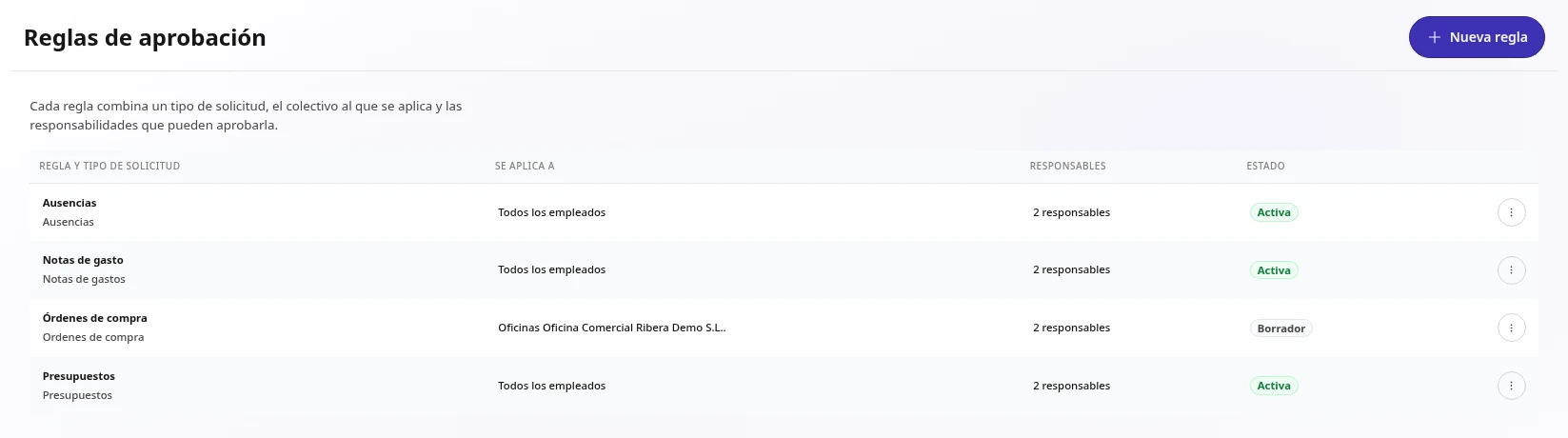
Decide who each rule applies to
Define the scope of each rule so it matches your policy. By default it covers the whole team.
If more than one active rule covers the same type, TalentoHQ warns you and keeps the priority between the specific rule and the general one.
Choose approvers by their role in the organization
Choose who decides by their role in your organization, or a specific person when the function is stable.
You can use the direct manager, any manager above them, the team manager or the office manager. These roles come from the requester's employee record: keep each person's manager, team and office up to date. A specific person fits stable functions such as finance or purchasing. Every approver must approve, in any order. Conditions are not successive steps. A single rejection leaves the request rejected.
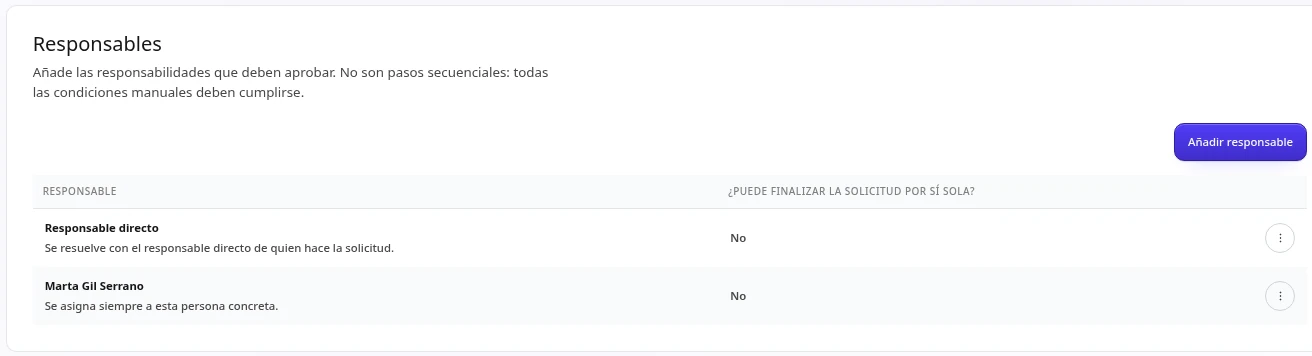
Save direct close for the person with the final say
You can allow one approver to close the request alone. It is still a person's decision, so save it for the person who really has the final say.
When needed, people with an administration role can also decide.
Test the rule with a real request before you activate it
Check the rule with a real request before you activate it.
Run through this list with a request from someone in the group:
- The rule applies to the right group.
- Each approver finds it and approves it.
- Only the people who should decide can decide.
- You see what happens if someone rejects it.
- Direct close works, if you have it on.
When everything fits, activate it. If you want, repeat the test with another office or team.
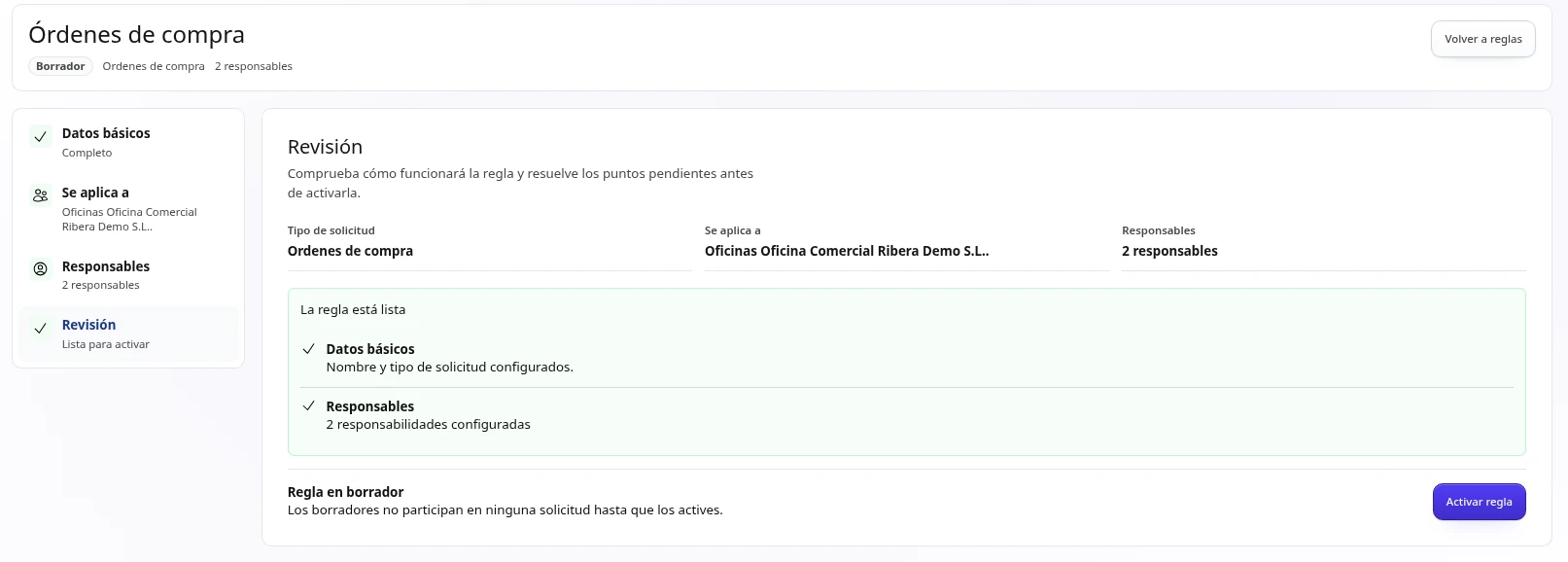
Keep rules up to date when the team changes
Keep each rule up to date with your team and your policy. A change to an active rule applies at once.
Before you edit, review pending requests, or deactivate the rule, edit it and activate it again when it is ready. When someone hands over their role, update the specific person on the rule and test a new request. If the policy changes, close pending cases and tell the team the start date. Keep each policy sentence written down: if you delete a rule, its conditions are deleted too. If an active rule becomes incomplete, it shows the "needs attention" status.
What each person sees while a decision is pending
The person who made the request sees whether their request is pending, approved or rejected, and the comment when there is a rejection.
Approvers decide with context. For leave, they see dates, documents and overlap warnings (an overlap is a warning, and the decision stays with the approver). For expenses, they see the receipt and the reason. When leave is approved, TalentoHQ can update the balance, calendars and reports.
AI as support for approvals
Artificial intelligence is an optional assistant, billed separately. It helps you find information faster. People still make the decision.
You can ask, for example: "Show me the time entries pending review" or "Who has approved leave on Friday?". Employees can also request leave in plain language, review the preview and confirm. After that, the request follows your company's normal approval flow. Each query respects your company's permissions, roles and approval flows. Read more about artificial intelligence.
Create your approval rules in TalentoHQ
Frequently asked questions
Do approvers decide in a fixed order?
No. They are not sequential steps: every approver must approve, in any order, unless you have allowed one of them to close the request alone.
What happens if an approver rejects the request?
The request is rejected. It helps to add a note with the reason so the person knows what to change. For expenses, the person who submitted the request sees that comment.
Can I have different rules for an office or a team?
Yes. Each rule can apply to the whole team or to a specific group. If more than one active rule covers the same type, TalentoHQ warns you and keeps the priority between the specific rule and the general one.
What happens if I change a rule that is already active?
The change applies at once. Review pending requests first, or deactivate the rule, edit it and activate it again when it is ready.
What happens when a team's manager changes?
If the rule uses a role (direct manager, team manager or office manager), it follows the current structure, so keeping records up to date is enough. If it uses a specific person, update the rule and test a new request.