Each person in TalentoHQ has a file with their details, contracts, schedules, balances and documents. When that file also holds the payslip PDF, they can open and download their own copy on the web or on a phone. This guide walks through the path from upload to that download.
One file for documents and payslips
The profile brings contracts, schedules, balances, skills, reviews and documents into the same place. From that profile, HR handles joiners, contracts and the payslip PDFs.
For the employee, the gain is practical. The payslip sits next to the contract and the other files in their space, and they download it without asking HR to forward an email. For HR, checking someone’s paperwork starts by opening their file.
Payslips live in the same product as time tracking and attendance. More on the profile itself is on employee management, and the wider cycle is on HR management.
What this guide covers
With this guide you will:
- Upload documents to the file, group them with categories and set who can open them.
- Import a month of payslip PDFs from one ZIP, so each file lands on the right person’s record.
- See how someone downloads their documents on the web or on a phone.
- Understand who can see each document, and what a view actually records.
Related reading:
- Contracts, series and signatures: digital contracts and electronic signatures.
- News, policies and surveys in a shared space: the employee portal for SMEs and the employee portal page.
Documents on the file: upload and categories
Uploading one file or several follows the same steps. You need permission to edit documents. If Add documents is missing, that permission is the first thing to check.
- Open Documents and choose Add documents.
- Choose the owner, the person whose file the document belongs to, when the form offers that field.
- Enter a shared name for the batch, or leave the field empty so each file keeps its original name.
- Choose visibility. The usual options are in “Who sees what” below.
- Add one or more categories.
- Drag the files in, or select them from your computer.
- Turn on Notify if the people who can see the file should get an email.
- Save the form.
TalentoHQ creates one document per file and applies the same visibility and the same categories to all of them. A custom name typed for a batch is applied to every file in that batch. Leave the name empty when each contract or certificate should keep the name of the file.
A category classifies the document and makes it easier to filter. Visibility decides who can open it. Changing the category does not grant access to more people, and one document can carry several categories at once.
Someone without management rights can share with scopes such as only themselves, their manager, their team, their office or the whole company. Profiles with management can narrow the selection by company, office, team, person or role. Pick the smallest scope that includes the people who need the file, and review recipients and exclusions before you save.
When a month produces many payslips, uploading them one by one spreads the work badly. The ZIP import assigns each PDF to the file of the person it belongs to.
Import payslip PDFs from a ZIP
TalentoHQ keeps two jobs apart. A payroll period collects fixed and variable amounts by office, month and year, lets you review them and produces a working export. The payslip import opens a ZIP, matches each person and stores the PDF on their file. Closing a period does not hand out payslips. Importing the PDFs does not fill in the amounts on the period.
The import sits in administration, on Import payrolls, and it needs admin access. Pay information is confidential: check the scope, the codes and the notifications before you send the files. What a payslip must contain, and which rules apply to pay, depend on the country. This page only describes how TalentoHQ stores and shares the PDF.
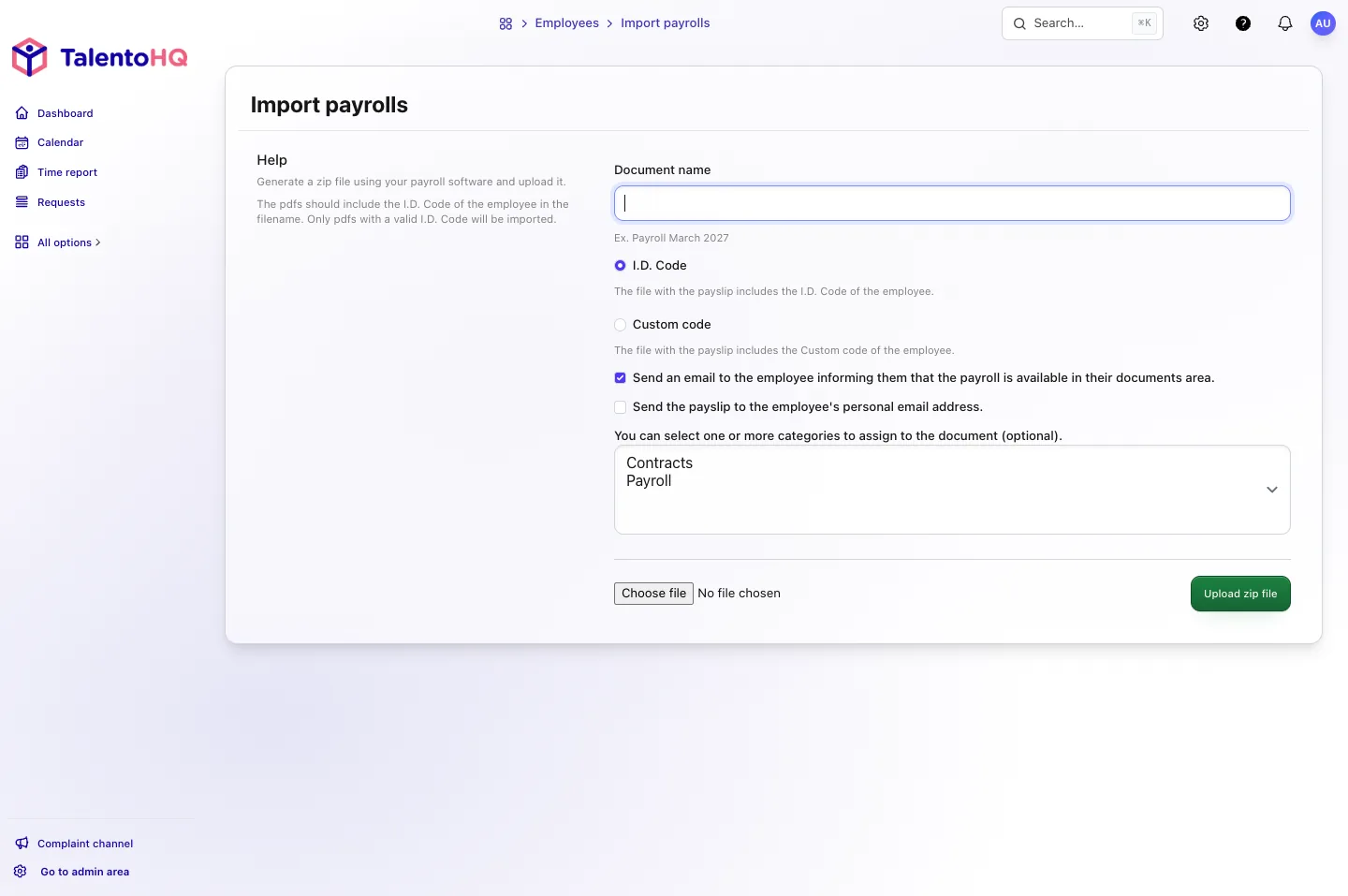
Prepare a ZIP that contains the payslips as PDFs:
- The ZIP cannot be larger than 25 MB.
- It can contain at most 200 entries.
- Each file can be at most 10 MB.
- Only files with a PDF extension are processed.
- Each PDF name must include the code you will use to identify the person. The code is enough: do not put other confidential data in the file name.
On the Import payrolls screen, TalentoHQ can look in each PDF name for one of these values:
- I.D. Code. Hyphens and underscores are ignored. Teams in Spain often store the national identity number in this field.
- Custom code of the person, as it is stored on their profile.
Documents are assigned only to active people on the account. Before you import, check that everyone has the chosen field filled in and that each code is unambiguous. A name with no match is not attached. A wrong match can place the payslip on someone else’s file: review a sample of the names, avoid codes that sit inside other codes, and fix duplicates before you start.
The form offers two separate notices. You can email the person at their work address and, separately, send the PDF to their personal email when that address is on the profile. Turn each option on only when it is part of your company’s procedure. Before you use the personal address, confirm that it is correct and that the channel is authorised for pay documents.
The import runs in the background. When it finishes, the person who started it receives an email with the documents that were attached and the errors the import detected. A PDF with no match is not attached, and it may be missing from that list: compare the names in the ZIP with the result before you treat the send as closed. If a PDF failed, correct the name or the code and import only those files again, so you do not duplicate the ones already on the file.
You can try TalentoHQ for 14 days, with no card, or request a demo if you would rather walk through this flow with your own month-end.
Download documents on the web or on a phone
The person opens Documents on the web or on a phone. The list shows files owned by them and files shared with a scope they belong to.

- Scan the cards, or open Show filters.
- Search by part of the name.
- Combine office, team, category or period when those filters are available.
- Open the card and check the name, the last update, the size and the categories. Use the preview when the format allows it.
- Choose Download to save the original file.
If there is no preview, the download is still available. If an expected file is missing, check visibility and the owner: the list only includes what belongs to the person looking.
Opening the detail records the view. That activity is what the next section reviews.
Who sees each document, and what a view records
Seeing a shared document does not give permission to edit or delete it. Visibility sets the access: the person, their manager, their team, their office, the whole company, or a selection by person or role when the sharer has management rights. Whoever administers the account can consult the company’s documents. Everyone else sees their own files and the ones inside their visibility.
Someone with permission to manage documents opens Viewing activity from the file detail. It shows:
- Who opened it, the last visit and the number of views.
- The Not seen list, with the people in that visibility who have not opened the detail yet.
The list is calculated on the people included in the visibility, not on the whole company. If someone appears on neither list, they are outside that visibility.
A view confirms that the person opened the detail in TalentoHQ. It does not confirm that they downloaded the file, read it or accepted the content. When the company needs to evidence reading or acceptance, that follow-up belongs to the process the company has defined, for example a signature, and not to this view.
The file, ready to consult
Contracts, policies and payslip PDFs can live on the file of the person who needs them. HR uploads or imports, chooses who sees each file and checks which views were recorded. Each person finds their own documents in the same place, on the web or on a phone.
Frequently asked questions
Does importing the ZIP complete the payroll period?
No. The payroll period collects amounts and lets you export the month’s work. The ZIP import stores each PDF on the file of the person it identified. They are two complementary processes.
What happens if a PDF matches nobody?
It is not attached. The result email lists what was attached and the errors that were detected; a name with no match can be absent from that list. Correct the name or the code and import only that file again.
Does a view prove that the person read the payslip?
No. Recording the view means they opened the detail. It does not mean a download, a reading or an acceptance.